Chat Interface
Using the Agent Chat window
The Agent Chat window is a native Slate-based UI for conversing with AI agents directly in Unreal Editor.
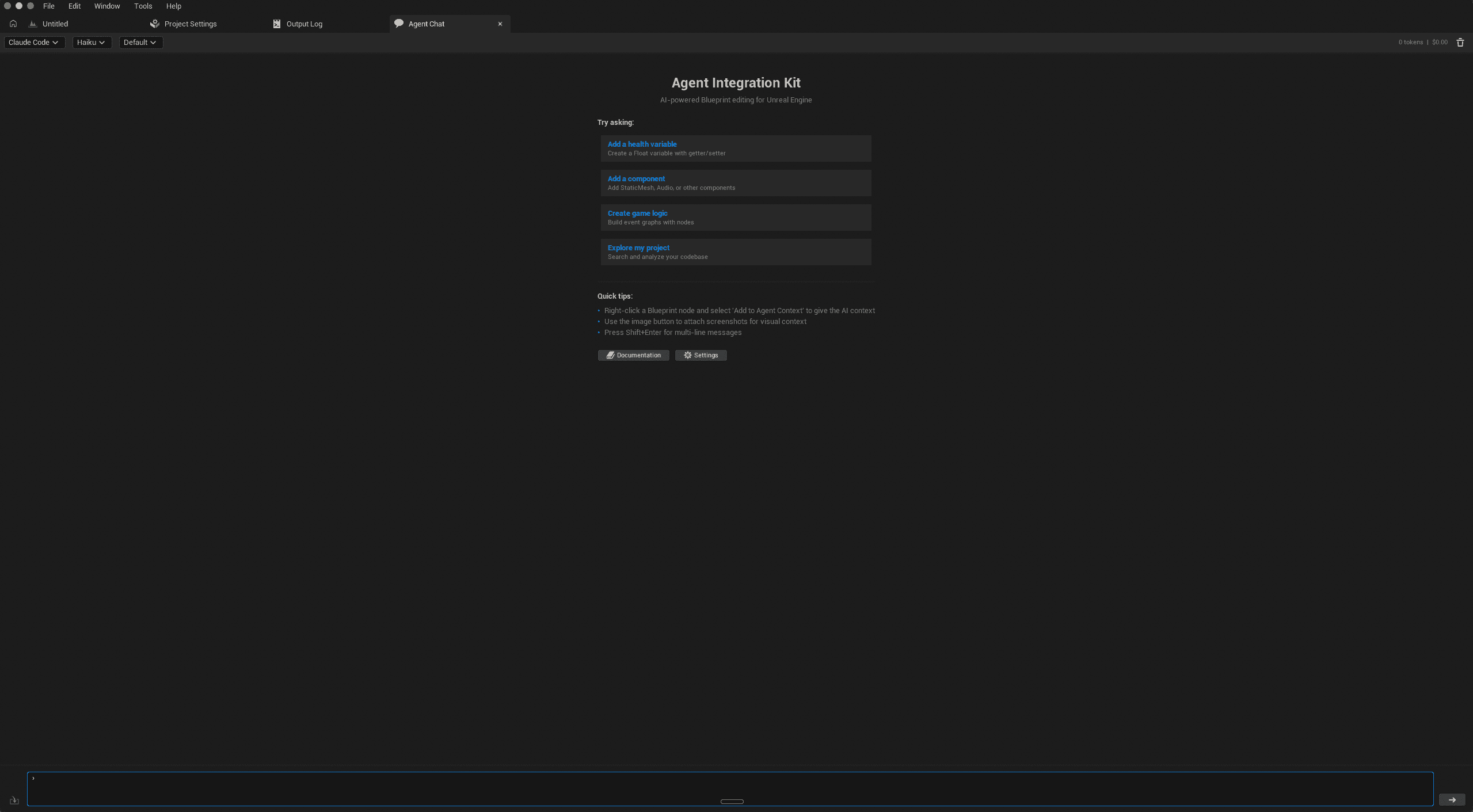
Opening the Chat Window
Go to Windows > Agent Chat to open the chat window. The window is dockable—drag it to any panel location in your editor layout.
Basic Usage
- Select an agent from the dropdown (Claude Code, OpenRouter, etc.)
- Click Connect to establish connection
- Type your prompt and press Enter to send
- Review the response and any tool calls the AI makes
Context Attachments
You can attach context to help the AI understand your project:
Using @ Mentions
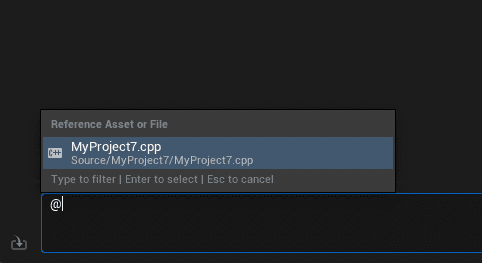
Type @ in the chat input to quickly attach assets:
@BP_- Search for Blueprints@M_- Search for Materials@DT_- Search for DataTables- Start typing any asset name after
@to search
A dropdown will appear with matching assets. Select one to attach it to your message.
Right-Click Attachment
- Right-click a Blueprint node in the graph editor
- Select Attach to Agent Prompt
- The context will be included in your next message
Tips
- Be specific - Clear prompts get better results
- Provide context - Attach relevant nodes or assets when asking about specific code
- Review tool calls - Expand tool panels to see what the AI is doing
- Start fresh - Clear the conversation if context becomes confused